Creating your Bol.com API key
Bol.com gives you a Client ID and a Client Secret that let Schakel read and update your orders, stock and shipments on your behalf. You create them yourself in your seller account, in about two minutes.
What you end up withAt the end you hold two values: a Client ID and a Client Secret for the Retailer API.
- 01
Go to your Bol.com seller account
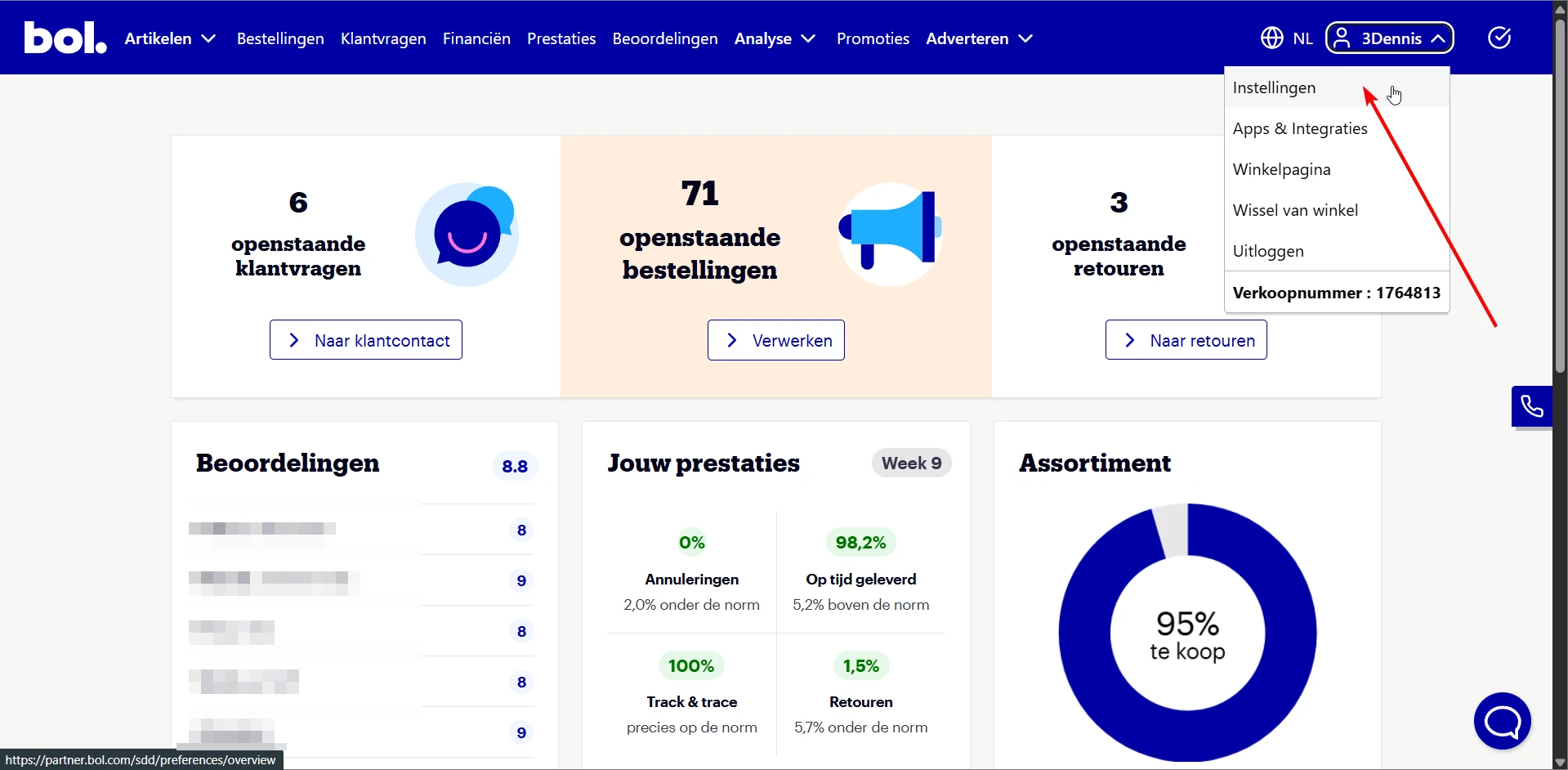
Log in to your Bol.com partner account and click your name in the top right. Then click Instellingen (Settings).
Or go straight to https://partner.bol.com/sdd/preferences/shop/details
- 02
Open API Settings
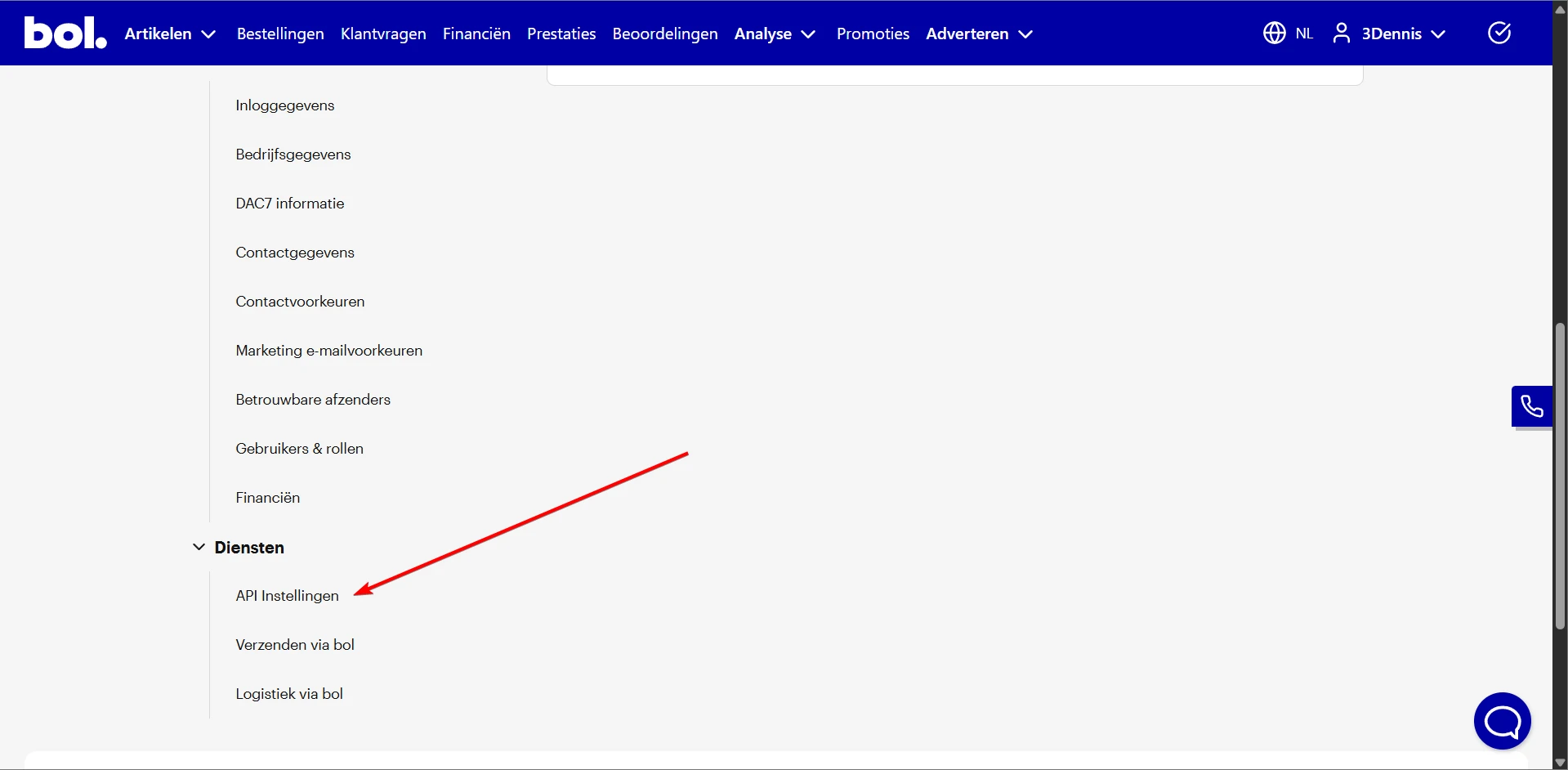
Scroll down on the settings page. Under the Diensten (Services) heading you will find API Instellingen (API Settings). Click it.
Or go straight to https://partner.bol.com/sdd/preferences/services/api
- 03
Create new API credentials
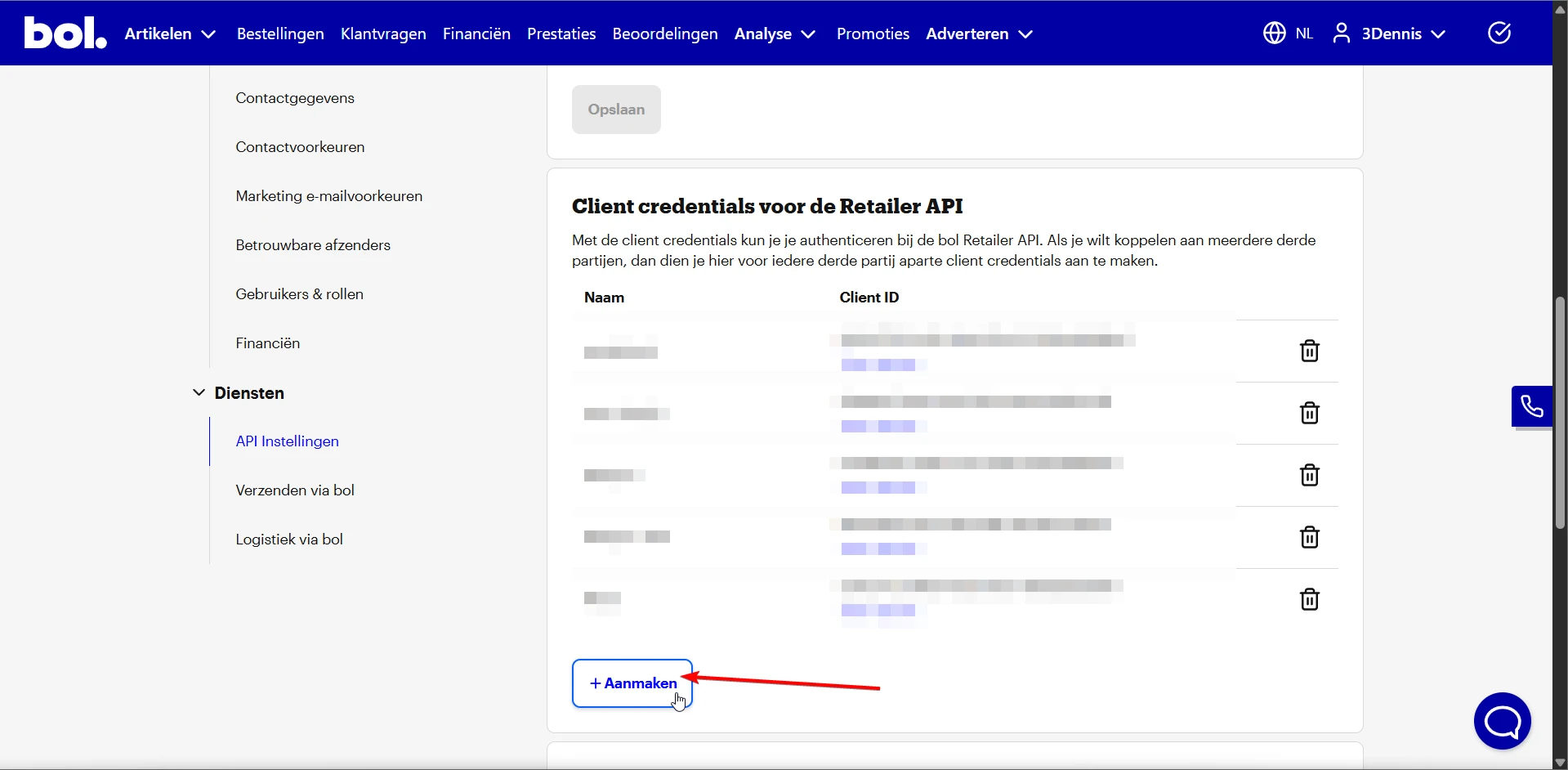
Scroll to Client credentials voor de Retailer API and click the + Aanmaken (Create) button.
- 04
Name the key
Give the API key a recognisable name, for example Schakel. If you ever hold more than one key, that name is how you tell them apart. Click save.
- 05
Copy your Client ID and Secret
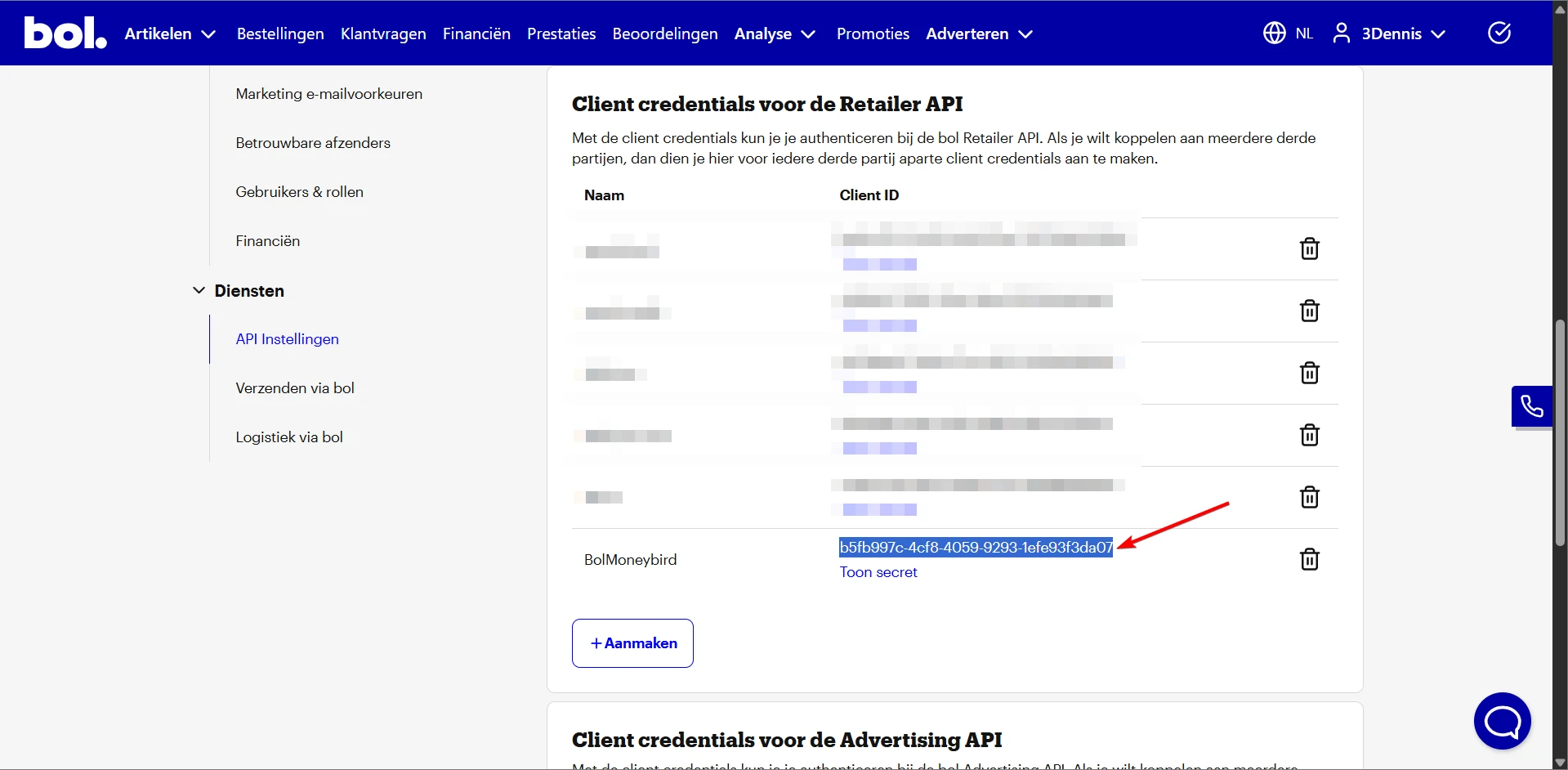
After creating them, your new credentials appear in the list. Copy the Client ID, then click Toon secret (Show secret) to reveal and copy your Client Secret.
- 06
Enter the credentials in Schakel
Paste the Client ID and Client Secret into Schakel under Connections. Schakel tests the connection right away, so you know at once whether it worked. Once it shows green, the connector you set up starts using this access and the first sync runs within a few minutes.
Worth knowing
- Your Client Secret is a password. Do not send it by email or drop it in a shared document. If you lose it, create a fresh pair and delete the old one.
- One key pair per connector keeps things tidy: you can revoke one without stopping everything else.
- The Retailer API is not the same as the Advertiser API. Schakel needs the Retailer API.
If something goes wrong
- Schakel says the credentials are invalid.
- Copy the Client ID and Client Secret again, with no space before or after. The secret only appears behind Toon secret (Show secret). If in doubt, create a fresh pair and paste those.
- The key was created under the Advertiser API.
- Schakel uses the Retailer API. Create the pair under Client credentials voor de Retailer API; an Advertiser key will not work.
- You sell through more than one Bol.com store.
- Each store has its own key pair in its own account. Create one pair per store and add them separately in Schakel, so you can revoke one without touching the rest.
Connectors that use your Bol.com access
Once you hold the keys, this is where they go. Every connector below talks to Bol.com.
Stuck on a step?
Screens move around. If what you see does not match the screenshots, message us and we will look at it with you, and fix the page.